
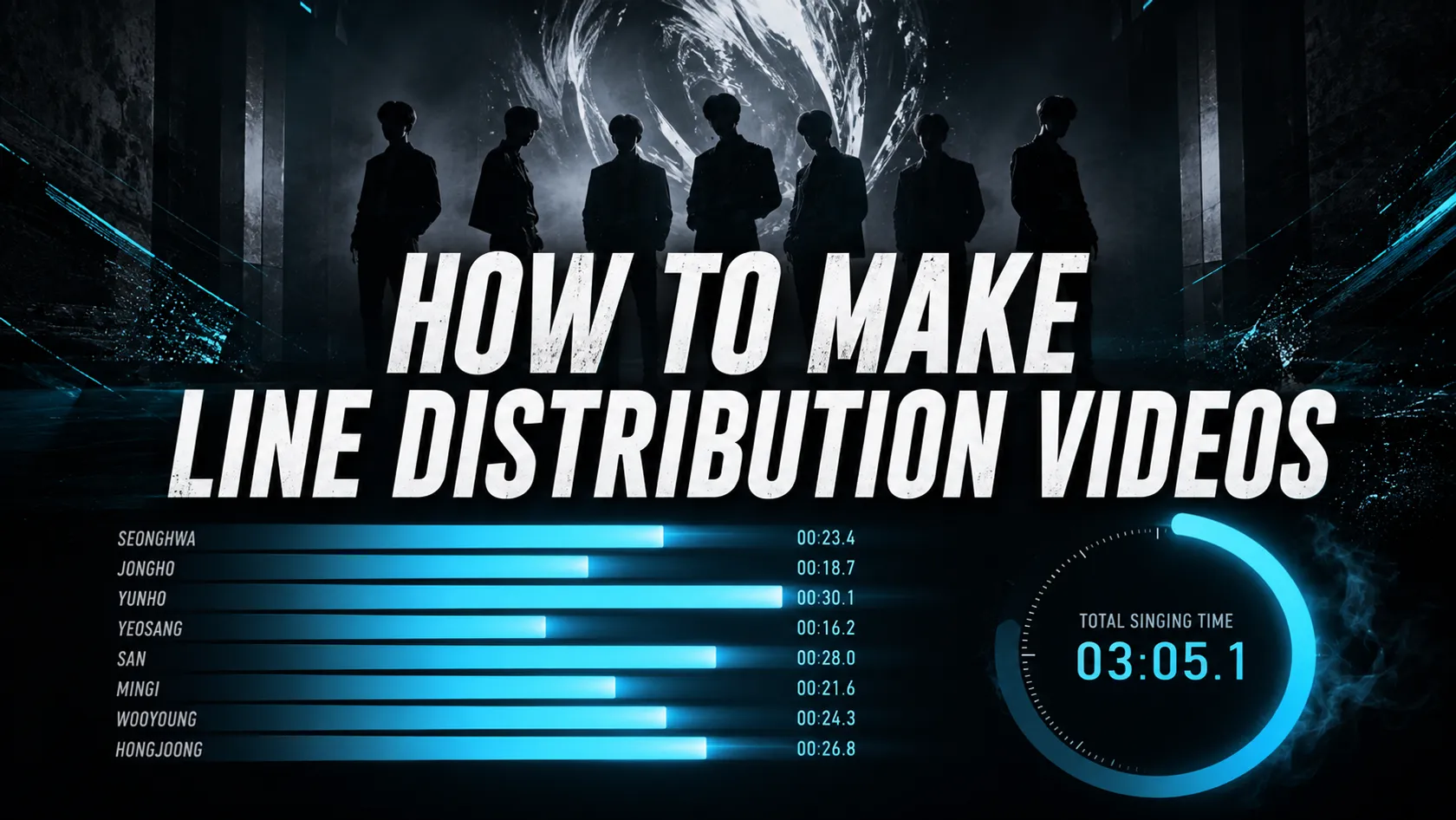
Create a K-pop line distribution video in your browser with a project you can return to and refine. The workspace takes you through Audio → Lyrics → Members → AI Sync → Style → Export. You can time the song manually for free, or use AI Sync to generate a first pass of lyric timings and review it yourself.
Basic editing does not require an account. Sign in to save projects and supported uploaded assets to your account, and to use one free AI Sync without adding a payment method. Buy AI Sync credits for occasional use, or subscribe to Pro for unlimited AI Sync and watermark-free exports.
Before you start
Prepare an audio file, the original lyrics, and a list of the members singing in this version of the song. Use media you have permission to publish. If you want a video background, keep that file ready for the Style step—it is separate from the song audio.
Open the project workspace, choose Create project, and give the project a recognizable name. Guest projects stay in this browser; signed-in projects can be saved to your account and reopened on another device.
1. Audio: upload your song
Upload an MP3, WAV, M4A, AAC, OGG, or FLAC audio file. The Audio step accepts audio rather than video or a YouTube URL. If your browser cannot decode a file, try MP3 or WAV.
Choose the exact recording you plan to use in the final video. A live version, remix, or music video with an extra introduction can shift every lyric. Tracks for AI Sync must be no longer than 10 minutes. Signed-in audio uploads support files up to 200 MB; larger files remain on this device and cannot be used for AI Sync.
Use the waveform to seek through the track. Playback speeds of 0.5×, 0.75×, and 1× help you check transitions; the small timing controls let you move in 0.1-second increments.
2. Lyrics: enter the original lines
Paste the song's original lyrics and review the lines before continuing. Keep each sung line separate, correct spelling, and include repeated choruses in the order they appear in the audio.
AI Sync aligns the text you provide with the recording; it does not write missing lyrics. For multilingual songs, keep the original sung words rather than replacing them with a translation. You can still create member distribution timings manually if you do not need lyrics in the video.
3. Members: add the performers
Add each member, or use the group picker when the group is available. Check the names and choose distinct colors. You can replace profile photos and adjust member details to fit the video.
Assign lyric lines to the member who sings them. AI timing does not identify singers for you. Listen carefully to shared lines, harmonies, and ad-libs, and apply the same counting rules throughout the song.
4. AI Sync: align and review
You have two ways to set timing:
- Manual timing: use playback and editable start/end ranges to mark lyrics and members' singing sections. This remains free.
- AI Sync: provide the audio and original lyrics, confirm the processing notice, and run alignment. Successful results are applied directly to the lyrics. Click a line to select it and play from its start, use 1–9 to assign a member, or use the pencil button to edit details. You can undo the timing update.
Every signed-in account includes one free AI Sync. A failed alignment does not use that allowance. After it is used, buy a $5 pack for 20 AI Sync uses or subscribe to Pro for unlimited AI Sync. Each successful credit-funded run consumes one credit; failed runs do not consume credits. The free run is shared across your projects and devices, rather than resetting for each song.
AI results can need corrections around instrumentals, repeated phrases, overlapping vocals, or quiet backing vocals. Slow the track down, check the start and end of each line, and edit anything that feels late or early. Member ranges may overlap when multiple people are singing at once.
5. Style: design the video
Choose your member colors, photos, background, and visual settings. If you want a video background, upload it here. Keep the background matched to the song, and check that text remains readable against moving images.
Background videos currently need to be selected again on another device; do not assume a local video background has been saved with the cloud project. Review both the lyric colors and the member distribution results before exporting.
6. Export: save your finished work
Open Export, choose video export, and review the music, background, and lyrics options. Keep the tab open while the browser renders. Available video formats depend on browser encoding support, and longer tracks take more time to render.
You can also export a PNG results card. Free exports display linedistribution.app in the bottom-right corner; Pro video and PNG exports have no domain watermark. Your subscription is checked when exporting.
Free features, AI Sync credits, and Pro
| Feature | Free | AI Sync credit pack | Pro subscription |
|---|---|---|---|
| Manual lyric and member timing | Included, no account required | Included | Included |
| Member colors, photos, and styling | Included | Included | Included |
| Video and PNG export | Domain watermark | Domain watermark | No watermark |
| Cloud projects and supported assets | Sign in to save | Included when signed in | Included when signed in |
| AI Sync | One free run after signing in | 20 uses for $5 | Unlimited during the subscription |
Cloud saving supports up to 100 projects and 1 GB of assets per account. Individual uploads support audio up to 200 MB, images up to 20 MB, and video up to 1 GB, subject to the account storage limit.
An AI Sync credit pack costs $5 once for 20 uses and does not renew automatically. Pro costs $15/month or $99/year, with unlimited AI Sync during the active subscription period. Subscriptions are charged at purchase and renew automatically until canceled. Each account still receives one free AI Sync without a payment method.
Quick checks before you publish
- Confirm that the audio is the same recording you timed.
- Check member assignments, repeated lyrics, and overlapping parts.
- Preview difficult transitions at a slower playback speed.
- Check music, background, and lyric options in the export dialog.
- Watch the exported file before uploading it to your chosen platform.
Frequently asked questions
Can I make a video without signing in?
Yes. Manual editing, styling, and video or PNG export are available without an account. Guest projects stay in your browser, and free exports include a small domain watermark. Sign in for cloud saving and one free AI Sync.
Does AI Sync identify which member sings each line?
No. AI Sync generates lyric timing from your audio and original text. You assign the singers and review the member ranges yourself.
Can I paste a YouTube link in the Audio step?
No. Upload a supported audio file in Audio. Add a local video background separately in Style if you want one.
What happens when the free AI Sync fails?
A failed alignment does not consume your free use. Check that the recording and original lyrics match, then try again. A successful alignment uses the allowance even if you later undo its results.
Do I need Pro to save a project online?
No. Cloud project saving is available after signing in, within the account storage limits. Pro adds continued AI Sync and watermark-free exports.
Make your first line distribution video
Start with a song and build the project one step at a time. Use manual timing, or sign in and try your first AI Sync free.