You can make a K-pop line distribution video entirely on your iPhone or iPad with the Line Distribution app. Add your song or video, create the member list, play the track while marking who is singing, review the calculated times and percentages, and then generate the finished video. You do not need to build animated bars or timers manually in a desktop video editor.
This mobile workflow has four main steps:
- Add the song, media, and group members.
- Play the video and mark each singing part.
- Preview the line distribution results.
- Choose the video style and generate the export.
Before you begin: Only download, edit, or publish video and audio that you own or have permission to use. If you need a local copy of authorized material, you can use ytdown as described in Step 1, subject to the copyright rules, platform terms, and downloader terms that apply to the material.
What you need
Before starting, prepare:
- An iPhone or iPad running a compatible system version
- The Line Distribution app for iPhone and iPad
- A video or audio file saved on your device
- The group name and member names
- Optional member photos and a background image
Using a video is helpful when you need visual clues to identify the current singer. If you already know every part, an audio file is enough.
Step 1: Add the song, media, and members
Open the Line Distribution app, create a New video, and enter the song name. Under Song media, choose one of the available sources:
- Video to select a video from your library
- Music to import an audio file
If you do not yet have a local media file and you are authorized to download the source, open ytdown, paste the relevant video URL, and save the format you need to your phone. Use the downloaded file only when you have the necessary rights or permission. Downloading a file does not give you permission to republish copyrighted music or video.
Next, add the performers. Tap Add to create members individually, or tap Add group to select or create a complete group. Check every member name before continuing. Clear, distinct member colors will make the finished distribution easier to follow.
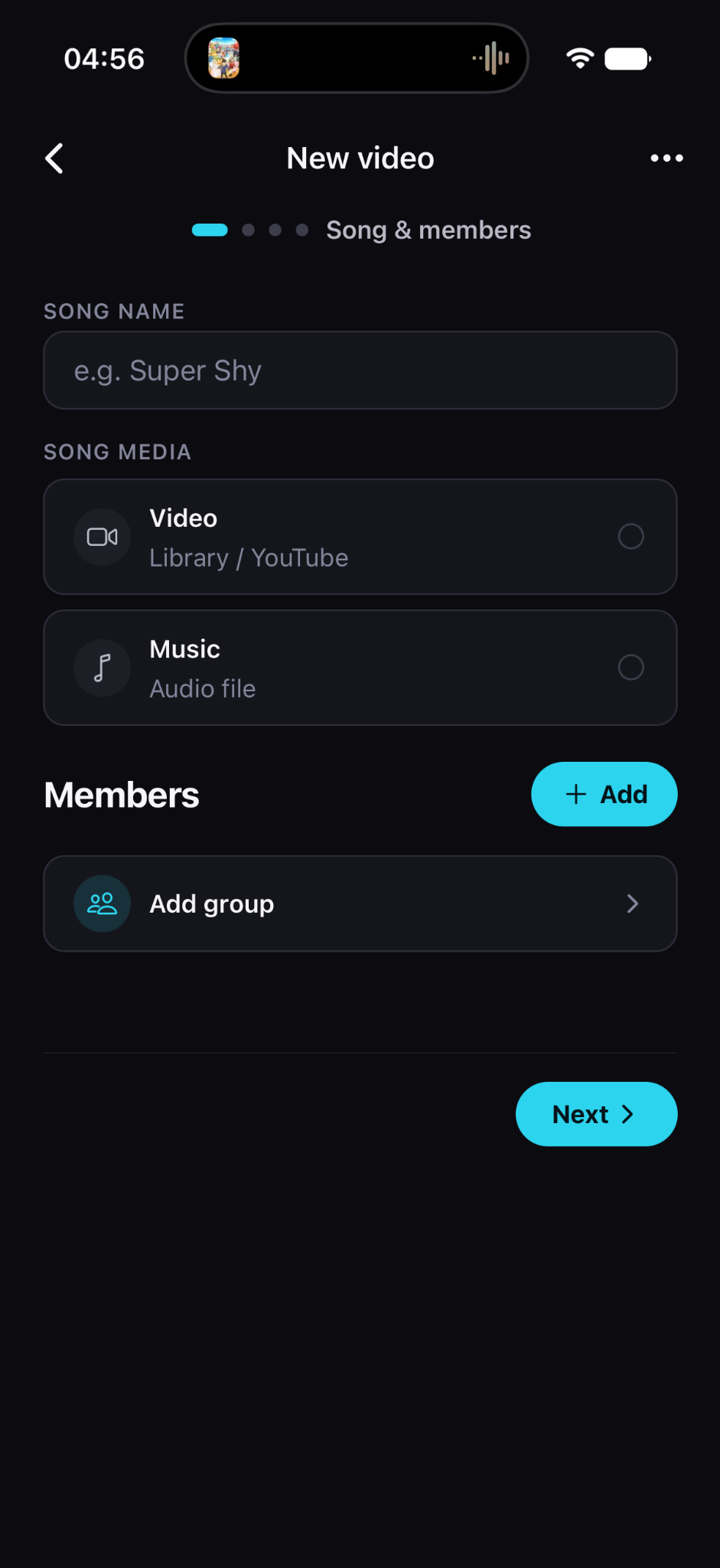
Start a project by entering the song name, selecting a video or audio file, and adding the group members.
Once the song and members are ready, tap Next.
Step 2: Play the video and mark every singing part
The Singing parts screen is where you record who sings and for how long. Keep Timing selected, play the video, and tap a member when their part begins. Tap that member again when their part ends.
Repeat this throughout the song:
- Play the track.
- Tap the member as soon as their vocal begins.
- Tap the same member when the vocal ends.
- Tap the next singer and continue until the song is complete.
Use No vocals for instrumental sections, intros, outros, or gaps you want to identify separately. If several members sing at the same time, apply one consistent rule throughout your analysis. You may count audible overlapping parts for multiple members, but your results will only be meaningful if you use the same method from beginning to end.
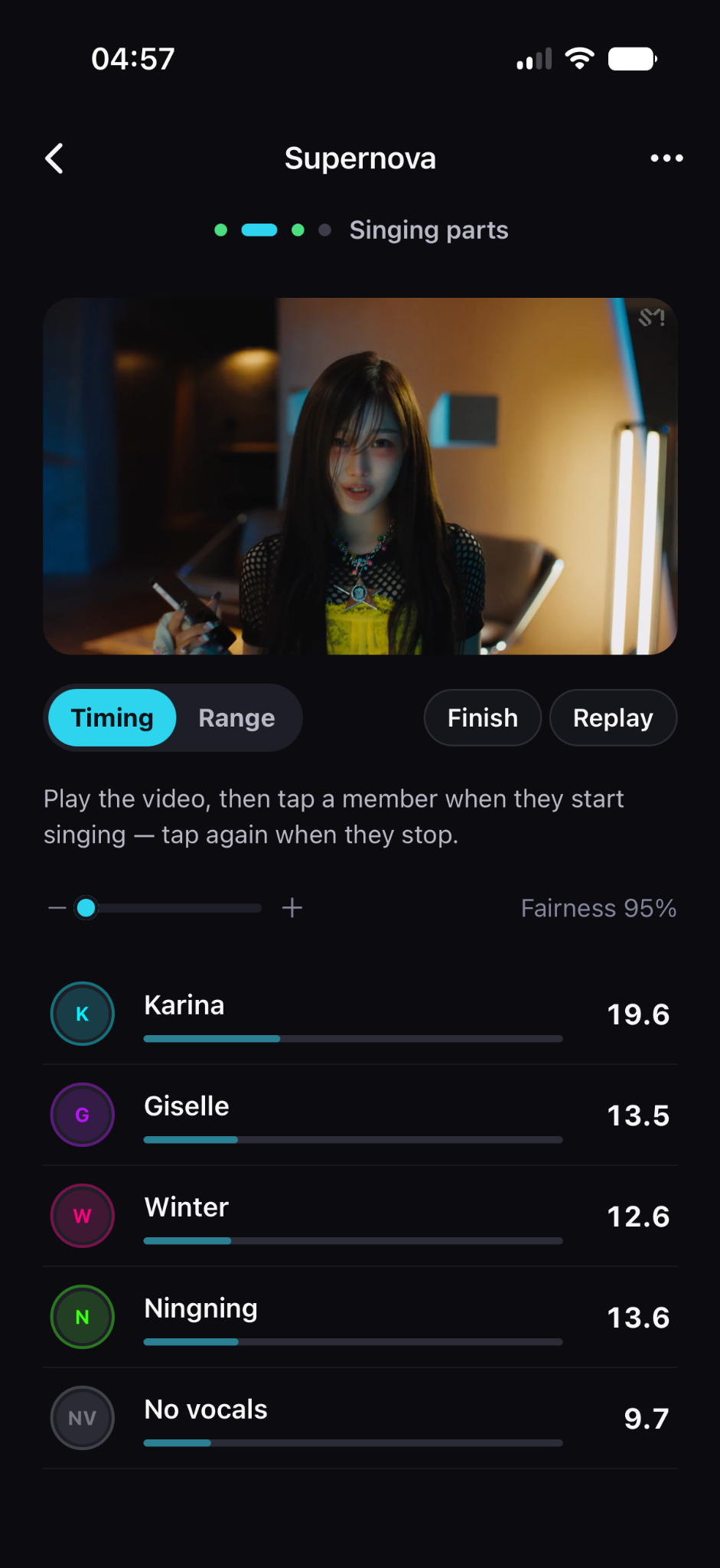
Tap members as their parts start and stop. The app updates each member's accumulated singing time while the video plays.
Timing mode or Range mode?
Timing mode is the fastest choice when you want to tap along in real time. Range mode is useful when you already know the exact start and end of a part or need to correct a difficult transition precisely.
Use the minus and plus controls near the timeline when you need finer playback control. Tap Replay to check your work, especially around quick handoffs, ad-libs, and shared choruses. When the complete song has been tagged, tap Finish.
Step 3: Preview the line distribution results
Before generating the video, review the Preview results screen. The app turns your timing data into:
- Total measured singing time
- Each member's time in seconds
- Each member's percentage of the measured vocals
- A visual distribution chart
- A fairness score describing how evenly the measured time is distributed
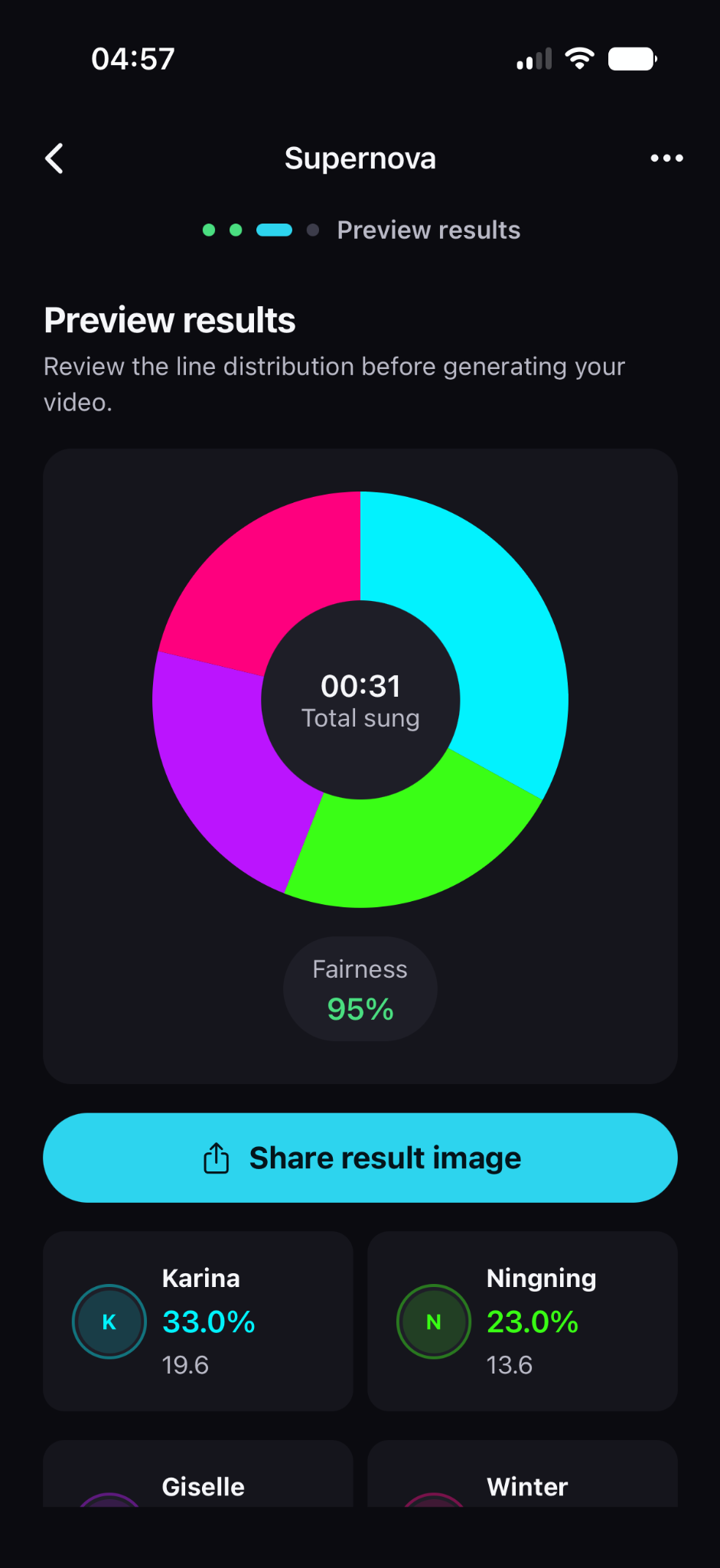
Review the chart, individual member totals, percentages, and fairness score before exporting.
Treat this screen as a quality check, not just the final ranking. If one value looks wrong, return to the singing-parts step and replay the relevant section. A missed tap can add several seconds to the wrong member.
The fairness score summarizes the balance of the recorded singing times. It does not judge vocal difficulty, line importance, center time, screen time, choreography, or the artistic reason behind a distribution.
You can also tap Share result image when you only need a static chart for social media or a discussion post. Continue to the generation step when you want an animated line distribution video.
Step 4: Customize and generate the video
On the Generate screen, choose how the finished video should look. The available settings shown in the app include:
- Background image: Select an image for the video background.
- Highlight color: Choose the accent color used by the design.
- Show fairness: Decide whether the fairness score appears in the result.
- Watermark: Choose whether to show a small linedistribution.app mark in the corner.
- Quality: Select Standard or High quality.
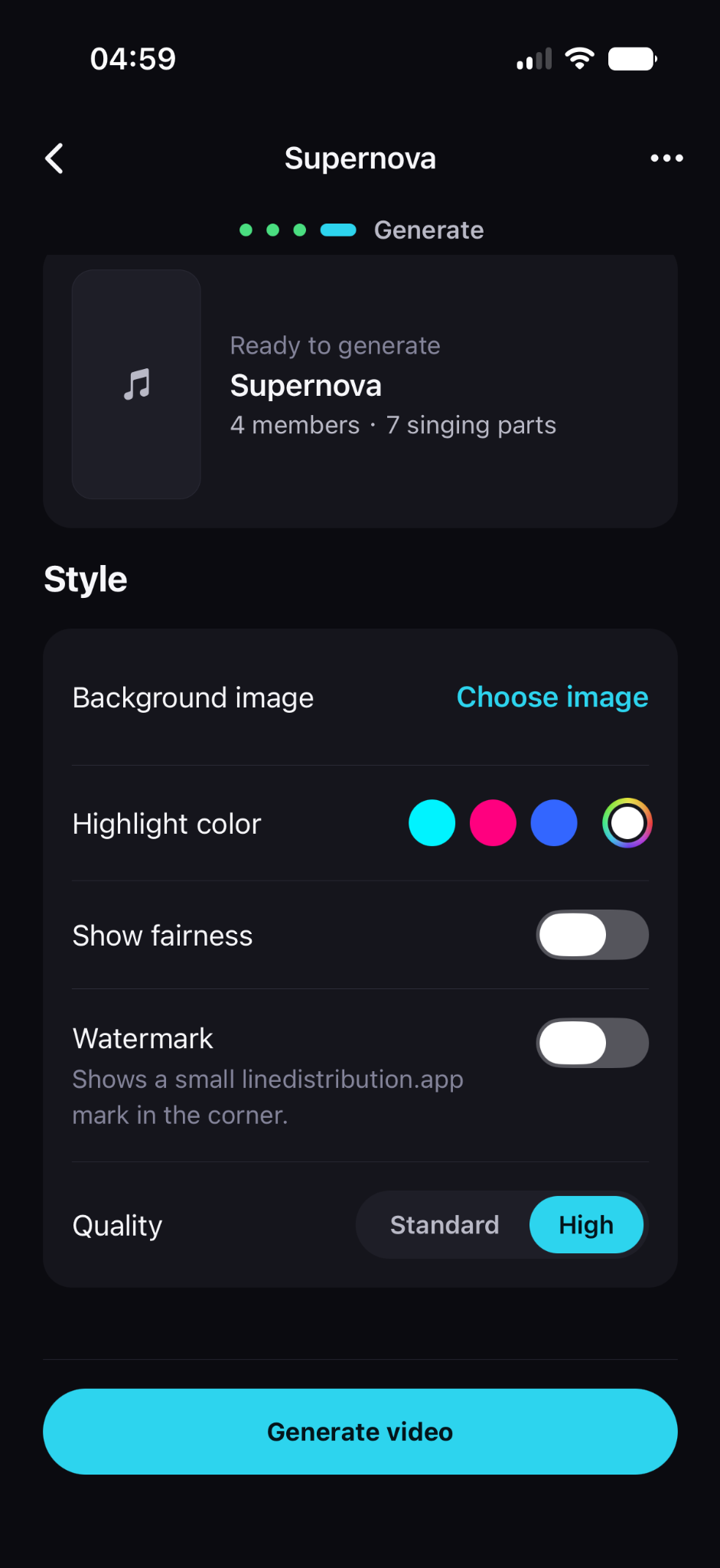
Choose the visual settings and export quality, then tap Generate video.
For a cleaner result, choose a background that does not compete with the member names and animated chart. High-contrast text and clearly different member colors are more important than a highly detailed background.
When everything is ready, tap Generate video. Keep the app open while it prepares the export. Longer source files and higher-quality settings can require more processing time. After generation finishes, save or share the video from your device.
Quick checks before you generate
Run through this checklist before starting the final export:
- The correct song version is loaded.
- Every performer appears once and has the correct name.
- Member colors are easy to distinguish.
- Every vocal section has been marked.
- Instrumental gaps are handled consistently.
- Fast transitions, harmonies, and ad-libs have been replayed.
- The preview totals look reasonable.
- The background keeps names and charts readable.
- You have permission to use and publish the selected media.
Tips for a more accurate line distribution
Decide your counting rules first
Decide how to count shared lines, harmonies, ad-libs, and gaps before you begin. Stay consistent and mention your method when sharing the result.
Replay difficult transitions
Replay quick handoffs and harmonies rather than guessing. Use Range mode when you need a precise correction.
Use the same version from start to finish
Use the same song version for timing and export; different videos may have different intros, edits, or pauses.
Remember that this is manual analysis
The app calculates from the parts you mark—it does not identify voices automatically. Consistent timing produces the best result.
Frequently asked questions
Can I make a line distribution video without a computer?
Yes. The iPhone and iPad app lets you import media, time parts, review the chart, and generate the video on one device.
Can I use only an audio file?
Yes. Choose Music to use an audio file; video is optional.
Can two members sing at the same time?
Yes, if that matches your method. Apply the same rule throughout the song.
Why does the total sung time differ from the song length?
Instrumentals and gaps make the total shorter; counting simultaneous singers can make it longer. Neither is automatically an error.
Is a line distribution the same as official song credits?
No. It is a timing-based fan analysis, not an official vocal credit record.
Can I do this in a web browser instead?
Yes. On a computer, follow the guide to make a K-pop line distribution video online.
Make your first mobile line distribution video
The complete phone workflow is simple: import the song, add the members, tap along with every vocal part, check the calculated results, and generate the finished video. The app handles the timers, percentages, chart, and video layout so you can focus on the analysis.